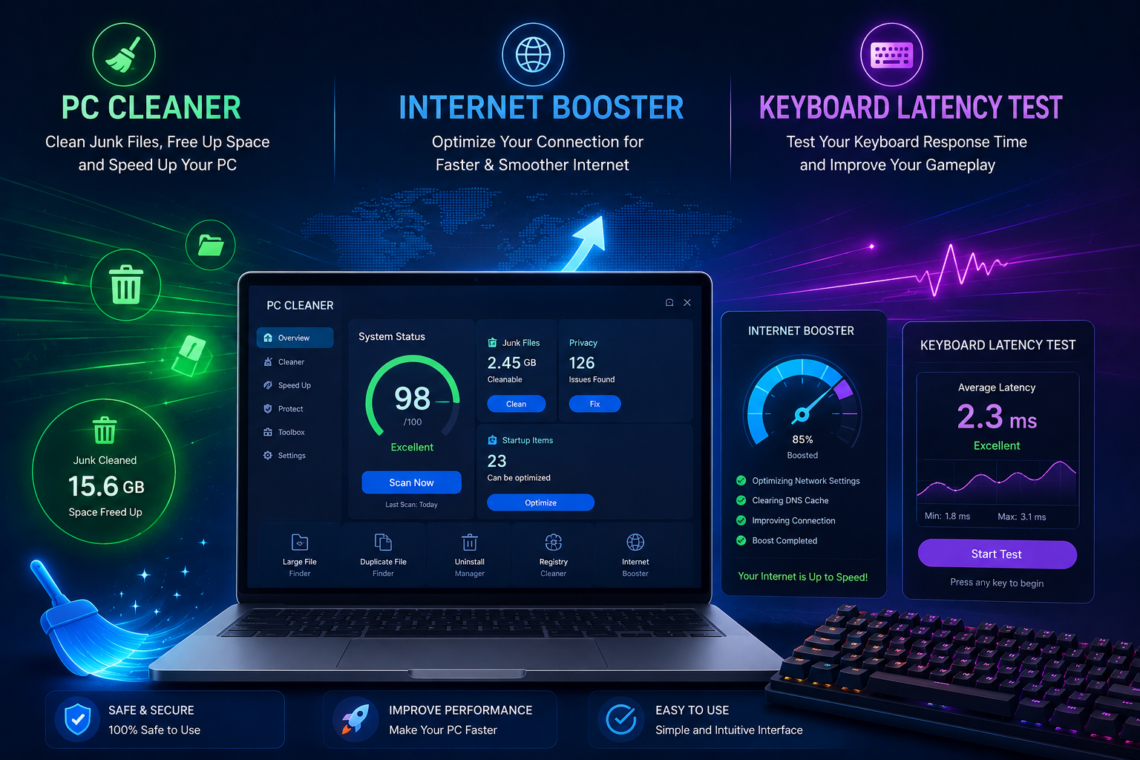
A computer can gradually feel slower or less responsive as more applications, temporary files, browser data, and background processes accumulate. For users who rely on their computers for work, entertainment, and gaming, even small performance issues can become frustrating.
Fortunately, improving a computer’s overall responsiveness doesn’t always require replacing its hardware. Basic system maintenance, network optimization, and input-device testing can help identify areas that may need attention.
Three useful areas to explore are PC cleaning, internet performance, and keyboard responsiveness.
Why Regular PC Maintenance Matters
Over time, computers accumulate temporary files, application leftovers, cached data, and other unnecessary items. At the same time, numerous applications may configure themselves to run automatically when the operating system starts.
Not every file or background process is harmful, but unnecessary clutter and excessive startup activity can make a computer feel less responsive.
A PC cleaner can help users identify and manage certain types of unnecessary files and system clutter. Depending on the software, cleaning tools may scan areas such as temporary files, browser-related data, logs, and other items that can potentially be removed.
Before deleting anything, users should review what a cleaning tool identifies and make sure important files are not included.
What Can a PC Cleaner Do?
The exact capabilities of PC-cleaning software vary, but common functions may include:
- Finding temporary files
- Removing selected system junk
- Cleaning browser-related data
- Managing unnecessary startup items
- Helping identify applications or processes that consume resources
- Providing basic system-maintenance features
A cleaner shouldn’t be considered a replacement for adequate hardware or a solution to every performance problem. If a computer has insufficient RAM, an aging storage drive, or an underpowered processor, deleting temporary files won’t turn it into a high-performance machine.
Instead, cleaning should be viewed as one part of routine computer maintenance.
Internet Performance Is a Separate Issue
A computer can run smoothly while online activities remain slow.
This happens because system performance and network performance are two different things. Your computer may respond quickly to local tasks while websites, downloads, online games, or video streams are affected by the quality of your internet connection.
Network performance can depend on several factors, including:
- Connection type
- Wi-Fi signal strength
- Network congestion
- Router performance
- Internet service provider
- Distance to online servers
- Other devices using the connection
Understanding these factors can help you determine whether a problem originates from your PC or your internet connection.
What Is an Internet Booster?
An Internet Booster generally refers to software or techniques designed to optimize aspects of internet performance.
Depending on the specific solution, optimization may involve network settings, connection management, or other configurations intended to make better use of an existing connection.
However, software cannot increase the fundamental speed provided by your internet service beyond what your connection and provider support.
Before making changes, it’s useful to establish a baseline. Run a few tests under normal conditions and compare results after making an adjustment.
Simple Ways to Improve Internet Performance
Before relying on specialized optimization software, check the basics.
If you’re using Wi-Fi, consider the distance between your computer and router. Walls, interference, and other wireless devices can affect connection quality.
You should also check whether other devices are consuming substantial bandwidth. Large downloads, high-resolution streaming, cloud synchronization, and software updates can affect available bandwidth.
Restarting networking equipment can sometimes resolve temporary issues, while keeping router firmware and computer networking drivers appropriately maintained can also be useful.
Don’t Confuse Internet Speed With Latency
Internet speed and latency are related but different concepts.
Download and upload speeds describe how quickly data can be transferred, while latency describes the delay involved in communication between devices and servers.
For online gaming, video calls, and other interactive activities, latency can sometimes matter more than having an extremely high download speed.
Therefore, improving the overall online experience requires looking at more than a single speed-test number.
Keyboard Responsiveness Matters Too
System and network performance aren’t the only factors that affect how responsive a computer feels.
Your keyboard is the primary input device for many applications and games. If keystrokes seem delayed or inconsistent, it can be useful to determine whether the issue is actually coming from the keyboard or from the software running on the computer.
A keyboard latency test can help measure the time associated with keyboard input under the conditions of the test.
Results can vary based on the keyboard, connection method, operating system, browser, USB configuration, and other factors. Because of this, testing under consistent conditions is important.
What Is Keyboard Latency?
Keyboard latency refers to the delay between pressing a key and the computer registering or processing that input.
For everyday typing, small differences may be difficult to notice. In fast-paced games or other timing-sensitive activities, however, input responsiveness can become more noticeable.
A latency test can provide useful information, but the result should be interpreted as a measurement under particular testing conditions rather than a permanent specification for every situation.
How to Test Keyboard Responsiveness
For a more useful comparison, keep your testing environment consistent.
You can:
- Connect the keyboard normally.
- Close unnecessary applications.
- Run the same keyboard latency test multiple times.
- Record the results.
- Repeat the process after changing one variable.
- Compare the results.
If you’re testing different keyboards, use the same computer, connection type, and general environment whenever possible.
This makes it easier to determine whether a difference is actually related to the keyboard.
Three Areas, Three Different Problems
PC cleaning, internet optimization, and keyboard testing address different aspects of computer use.
A PC cleaner focuses on system maintenance and unnecessary files or activity.
An Internet Booster focuses on network-related optimization.
A keyboard latency test focuses on input responsiveness.
This distinction is important because one solution cannot necessarily fix a problem caused by another part of the system.
For example, deleting temporary files won’t resolve poor Wi-Fi signal strength. Similarly, changing network settings won’t fix a keyboard that has a hardware fault.
Take a Measured Approach
The best way to troubleshoot a computer is to identify the problem before making significant changes.
If the system feels slow, check resource usage and unnecessary startup activity. If websites or online services are slow, investigate the network connection. If keyboard input feels delayed, test the keyboard separately.
Avoid changing many settings at once. Make one adjustment, test the result, and then decide whether another change is necessary.
This approach reduces guesswork and makes it easier to identify what actually improves your computer experience.
Final Thoughts
Maintaining a responsive computer involves more than one component. System clutter, network conditions, and input-device responsiveness can all influence how a computer feels during everyday use.
A PC cleaner can assist with routine system maintenance, while an Internet Booster may help optimize certain aspects of an existing connection. A keyboard latency test can provide useful information when investigating input responsiveness.
None of these tools should be viewed as a guaranteed solution to every performance problem. Instead, use them alongside sensible maintenance, reliable hardware, appropriate network equipment, and careful testing.
By identifying the actual source of a problem and measuring changes rather than guessing, users can keep their computers running more smoothly and make better decisions about future upgrades.




One comment on “PC Cleaner, Internet Booster, and Keyboard Latency: Simple Ways to Improve Your Computer Experience”