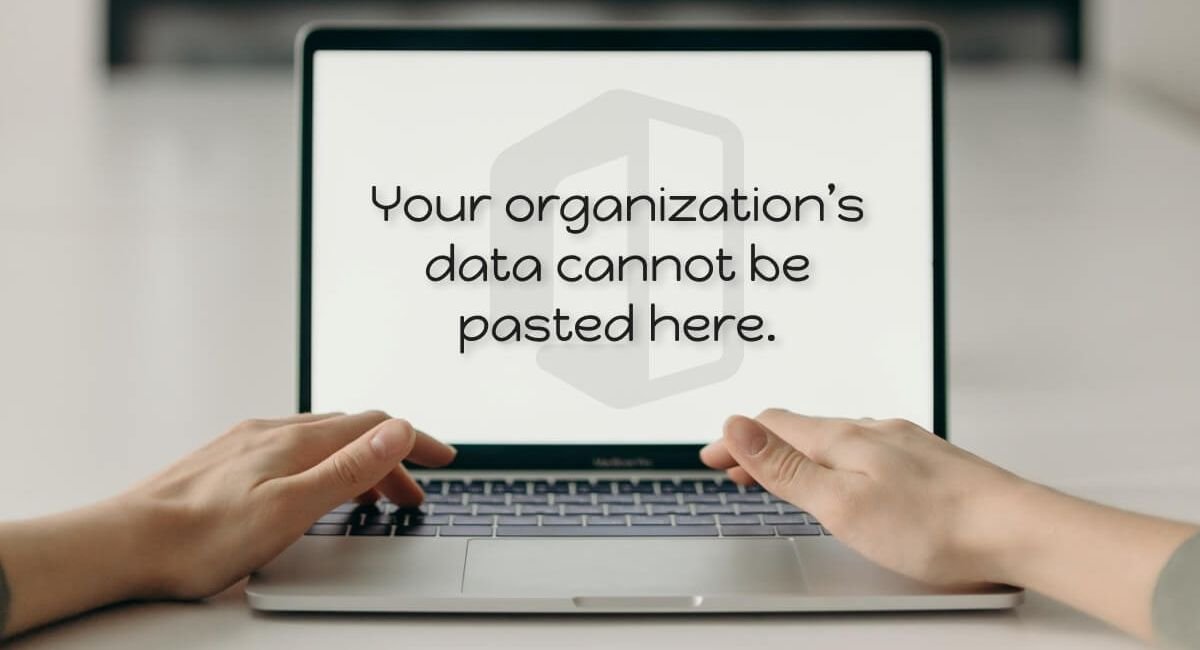
If you see the message “Your organization’s data cannot be pasted here” when trying to copy and paste text, links, files, or other information, your clipboard is usually not broken. In most cases, the message appears because a security policy is controlling how organizational data can move between applications.
This commonly happens when you copy information from a work or school application such as Outlook, Microsoft Teams, Word, Excel, OneDrive, SharePoint, or another managed application and try to paste it into an application that your organization does not manage.
The restriction is designed to protect business information from accidentally moving into personal applications. Microsoft Intune app protection policies can control whether organizational data can be copied and pasted between managed and unmanaged applications, including on devices that are not fully enrolled in device management.
For example, you may be able to copy text from Outlook and paste it into another approved work application, but the same text may be blocked when you try to paste it into a personal browser, messaging application, notes application, or another unmanaged program.
This guide explains what the error means, why it happens, how to troubleshoot it on Windows, Android, iPhone, and other devices, and what an administrator can change when the restriction is intentional.
What Does “Your Organization’s Data Cannot Be Pasted Here” Mean?
The message means that the application or security policy protecting your organization’s data has detected a copy-and-paste operation that is not allowed.
In a typical workplace environment, applications can be treated differently depending on whether they are managed by the organization.
A managed application is an application that is protected by organizational security policies. An unmanaged application is generally outside that protection boundary.
For example, an organization may allow data to move between approved Microsoft applications while preventing the same information from being transferred to a personal application.
The purpose is to create a boundary between work data and personal data.
Microsoft Intune provides app protection policies that can restrict copy and paste, screenshots, saving organizational files to personal storage, and other forms of data transfer. These policies can also be used in bring-your-own-device environments, meaning a company does not necessarily have to manage the entire personal device to protect organizational data inside supported applications.
Therefore, seeing this message does not automatically mean that your computer, phone, or clipboard is damaged.
In many cases, the restriction is working exactly as configured by the organization.
Why Does This Error Happen?
There are several possible reasons for the message, but an Intune application protection policy is one of the most common causes in Microsoft 365 environments.
An organization can configure rules controlling how information moves between applications.
For example, an administrator can configure a policy that allows:
- Copying between approved managed applications
- Pasting into approved work applications
- Copying from personal applications into managed applications
- Copying and pasting within the same protected environment
At the same time, the organization can block:
- Copying work information into personal applications
- Pasting corporate information into unmanaged applications
- Moving sensitive information into unapproved programs
- Transferring protected data outside the organization’s security boundary
Microsoft provides several settings for controlling these behaviors. Depending on the configuration, an administrator can completely block clipboard transfers, allow them only between managed applications, or allow broader copy-and-paste behavior.
This is why the exact behavior can differ from one company, account, application, or device to another.
Is This Error a Virus or Malware?
Usually, no.
The message itself is not an indication that your computer has a virus or that your clipboard has been infected.
If the message appears when using a work account or a Microsoft 365 application, it is more likely to be related to a data protection policy.
Organizations use these restrictions because copying information is one of the simplest ways for business data to move from a protected environment into a personal application.
For example, imagine an employee receives confidential customer information in a work email. Without appropriate controls, the employee could copy that information into a personal messaging app, personal email account, public website, or unapproved cloud service.
Application protection policies can reduce this type of data movement.
That does not mean every occurrence is necessarily intentional. Incorrect policy configuration, application updates, unsupported application behavior, or synchronization between devices can also create confusing copy-and-paste behavior.
Where Can This Error Appear?
The message can appear in many different situations.
Common examples include:
- Microsoft Outlook
- Microsoft Teams
- Microsoft Word
- Microsoft Excel
- Microsoft PowerPoint
- Microsoft OneDrive
- SharePoint-connected applications
- Microsoft 365 applications
- Managed browsers
- Mobile applications protected by Intune
- Windows environments connected to organizational accounts
- Android devices using managed work applications
- iPhone and iPad applications protected by Intune
The exact message and behavior can vary depending on the operating system, application version, organization policy, and the way the application is managed.
Some users may see the message when copying from a work application into a personal application. Others may see it even when moving information between two applications they believe should both be approved.
Microsoft’s troubleshooting guidance specifically notes that copy and paste can behave differently depending on whether the applications are managed, whether the document is stored in a managed location, and which app protection settings are applied.
The Most Common Situation: Work App to Personal App
One of the easiest ways to understand this problem is to consider a simple example.
Suppose you open Outlook using your company account and copy a sentence from a work email.
You then open a personal application and press Ctrl + V.
Instead of seeing the copied text, you receive:
“Your organization’s data cannot be pasted here.”
This can happen because Outlook is being treated as a protected application while the destination application is outside the organization’s approved data boundary.
For example, your organization might allow:
Outlook → Microsoft Word
but block:
Outlook → Personal Notes App
or:
Outlook → Personal Browser
The important point is that the copy operation itself may work correctly. The restriction is applied when the protected data is transferred to the destination.
Why Does It Sometimes Work in One App but Not Another?
This is one of the most confusing parts of the problem.
You might successfully copy information from Outlook into Teams but fail when trying to paste the same information into Chrome.
That difference can be completely intentional.
Organizations can define different levels of data transfer.
Microsoft’s Intune settings include options such as allowing copy and paste between policy-managed applications while blocking transfers between managed and unmanaged applications. There is also an option that allows data to be pasted into managed applications from other applications while still preventing protected data from being copied to unmanaged applications.
Therefore, the destination application matters.
Before troubleshooting, ask yourself two questions:
- Where am I copying the information from?
- Where am I trying to paste it?
This simple check can often explain why one destination works while another does not.
Quick Fixes You Can Try First
If this behavior is unexpected, try the following basic troubleshooting steps before changing complicated settings.
Restart the Application
Close the application where the error appears completely.
Then reopen it and test copy and paste again.
Temporary application problems can sometimes make a normal operation behave incorrectly.
Restart Your Device
A restart can refresh application processes, authentication sessions, clipboard behavior, and management components.
If the issue started suddenly, restarting the device is a simple first step.
Update Microsoft 365 Applications
Make sure the affected Microsoft applications are updated.
An outdated application can sometimes have compatibility problems with current security policies.
Update Outlook, Teams, Word, Excel, OneDrive, or the relevant application and then test the operation again.
Check Whether Both Applications Are Approved
Try copying the same information into another application that you know your organization uses for work.
For example, if copying from Outlook to a personal application fails, test whether copying from Outlook to another approved Microsoft work application succeeds.
If the managed destination works while the personal destination does not, that is strong evidence that the restriction is policy-related.
Sign Out and Sign In Again
If the application has an authentication or account synchronization problem, signing out and signing back in may refresh the organizational account information.
Do this only if permitted by your organization and make sure you know your credentials before signing out.
How to Fix “Your Organization’s Data Cannot Be Pasted Here” on Windows
Windows users often encounter this message while working with Microsoft 365 applications.
Start by identifying whether the source application is associated with a work or school account.
If you are copying information from Outlook, Teams, Word, Excel, OneDrive, or another managed application, try pasting it into another approved work application.
If it works there but fails in a personal application, the behavior may be the result of an organizational policy rather than a Windows clipboard problem.
Step 1: Update Office
Open the Microsoft 365 application that is displaying the issue and check for available updates.
After updating, restart the application and test the clipboard again.
Step 2: Test Another Managed Application
Copy a small piece of non-sensitive work information and test it in another approved application.
If the transfer works between managed applications, the policy is likely controlling the destination rather than the clipboard itself.
Step 3: Check Work or School Accounts
If you are using a personal computer, check whether a work or school account has been connected to Windows or Microsoft 365 applications.
A personal computer can still have organizational application policies applied to specific work applications.
This is particularly important in bring-your-own-device environments.
Step 4: Check Phone Link or Cross-Device Clipboard Features
If your Windows computer is connected to a managed phone, cross-device clipboard functionality can introduce another layer of data transfer.
If the error appears unexpectedly across devices, temporarily test the workflow without cross-device clipboard synchronization.
This can help determine whether the problem is coming from the work application, local Windows configuration, or cross-device data movement.
Step 5: Contact Your IT Administrator
If the error consistently appears when moving work data into an application that you legitimately need for your job, your IT department may need to review the policy.
Do not attempt to bypass a corporate security control by using unofficial methods.
How to Fix the Error on Android
Android devices can also display organizational clipboard restrictions when work applications are protected.
The problem is particularly common when a user has both personal and work applications on the same phone.
For example, you may copy information from Outlook or Teams and then try to paste it into a personal messaging application.
If the organization blocks that transfer, the paste operation can be prevented.
Update the Managed Applications
Open the relevant application store and make sure your work applications are updated.
Then restart the application and try again.
Try Pasting Into Another Managed Application
If possible, test the same text in another application that is approved for work use.
If the text works there but not in a personal application, the behavior may be intentional.
Check the Work Profile
Some organizations use Android work profiles to separate work information from personal information.
Make sure you understand whether the source application is inside the work profile.
Moving data from a work application to a personal application can be restricted by policy.
Be Careful With Third-Party Keyboards
There is an important Android-specific detail.
Some non-Microsoft keyboards may display confusing clipboard messages because they are not integrated with the organization’s application protection system.
Microsoft notes that, in certain configurations, a third-party keyboard may show a message indicating that organizational data cannot be pasted even though the actual paste operation inside a managed application may still work when allowed by policy.
Therefore, do not immediately assume that the keyboard itself is broken.
Test the paste using the normal paste function inside the managed application.
How to Fix the Error on iPhone or iPad
iPhone and iPad users can also encounter this restriction when organizational applications are protected by Microsoft Intune.
The steps are similar to Android troubleshooting.
Update Your Work Applications
Update Outlook, Teams, OneDrive, Word, Excel, or the relevant managed application.
Then close and reopen the application.
Restart the iPhone or iPad
A restart can eliminate temporary application or authentication problems.
After restarting, test the same copy-and-paste operation.
Test a Managed Destination
Try copying information from one approved work application into another approved work application.
If the transfer succeeds there but fails in a personal application, the organization’s data protection settings may be responsible.
Check Whether the Application Is Managed
Your organization may protect work data inside an application without fully managing the entire personal iPhone.
Microsoft specifically supports app protection policies for organizational data on devices that are not fully enrolled in device management.
This is why a personal iPhone can still display an organizational data restriction.
What If You Get the Error Even Between Work Apps?
This situation needs additional troubleshooting.
You may think:
“If both applications are used for work, why can’t I paste the data?”
There are several possible explanations.
The organization’s policy may be configured too restrictively.
The destination application may not be recognized as managed.
The document may not be opened from an approved managed location.
The application may not have received the latest policy.
There may also be an application compatibility issue.
Microsoft’s troubleshooting documentation notes that when copying between managed applications, the document being pasted into may need to be opened from a managed location such as a business cloud storage location. It also notes that app protection policies do not apply to unsaved new documents in the same way.
Therefore, if Outlook to Word fails, for example, try opening a work document from the organization’s approved storage location and test the operation again.
If the problem remains, the administrator should review the applied policy.
What Are the Intune Copy and Paste Settings?
For administrators, understanding the available settings is important because different configurations produce different user experiences.
Microsoft provides several options for the setting that controls cut, copy, and paste between applications.
Blocked
This setting prevents cut, copy, and paste between the protected application and other applications.
It provides the strictest clipboard restriction.
Policy Managed Apps
This setting allows copy and paste between applications managed by the organization’s policy.
It can prevent data from moving between managed and unmanaged applications.
Policy Managed Apps With Paste In
This configuration allows certain data to be pasted into a managed application while still preventing organizational data from being copied from a managed application into an unmanaged application.
This can be useful when employees need to bring information into a work application without being allowed to export protected work information to personal applications.
Any App
This option removes the copy-and-paste restriction between applications.
Microsoft documents these four behaviors as part of the Intune app protection policy configuration.
The correct choice depends on the organization’s security requirements.
What Is the Cut and Copy Character Limit?
Another important setting is the Cut and copy character limit for any app.
An administrator can define a maximum number of characters that can be copied from organizational data and shared with another application.
This can create a situation where small amounts of text can be copied successfully but larger selections are blocked.
For example, a short sentence might work while copying an entire paragraph or large section may fail.
Microsoft documents this character-limit option as an exception to the normal cut, copy, and paste restrictions.
Therefore, if only large selections are blocked, the character-limit setting should be considered.
Can an IT Administrator Allow a Specific App?
In some scenarios, an administrator can configure data-transfer exceptions for specific applications.
For example, an organization might need employees to transfer information to a particular approved application that does not support the same management features.
Microsoft supports certain data-transfer exceptions for unmanaged applications, depending on the operating system and policy configuration. However, Microsoft also warns that exemptions can expose protected organizational data to applications outside the managed environment.
This means administrators should not simply allow every application.
The safer approach is to identify the exact business requirement and permit only the necessary workflow.
Why Removing an App From an Exception List May Not Fix Copy and Paste
A common misunderstanding is that adding an application to a data-transfer exemption list will automatically allow copy and paste.
That is not always true.
Microsoft explains that data-transfer exemptions and cut, copy, and paste restrictions are separate controls.
Therefore, an administrator can configure an application as a data-transfer exception and still have copy-and-paste restrictions preventing the clipboard operation.
This distinction is important when troubleshooting a policy that appears inconsistent.
Administrators should review the actual clipboard restriction as well as the general data-transfer policy.
What If the Error Appears on a Personal Computer?
This can be especially confusing.
You may say:
“This is my personal computer. Why is it saying my organization’s data?”
The answer is that the device does not necessarily have to be fully owned or managed by the organization.
A work account can use protected applications, and app-level policies can protect organizational information without taking control of the entire personal device.
Microsoft describes this as an important use case for bring-your-own-device environments.
For example, an employee may use:
- A personal Windows laptop
- A personal Android phone
- A personal iPhone
- A personal tablet
while still accessing protected company information through managed applications.
The organization can restrict how that work information is transferred without managing every personal application on the device.
What If You Never Installed Intune Yourself?
You may never have opened an application called Intune.
That does not necessarily mean Intune-related protection is not involved.
Application protection can be applied through supported managed applications and organizational account policies.
In many workplace environments, the employee simply signs into a work application and the appropriate protection is applied behind the scenes.
The employee may only notice the policy when attempting an action such as copying work information into a personal application.
Can You Turn Off the Restriction Yourself?
If the restriction is controlled by your employer or school, normally you should not try to disable it yourself.
The purpose of the policy is to protect organizational information.
If you genuinely need to transfer data to another application for work purposes, the correct solution is usually to ask your administrator whether the destination application can be approved or whether there is an existing supported workflow.
For example, your organization may already provide an approved application for notes, document editing, file sharing, or messaging.
Using that approved option can solve the problem without weakening the organization’s security controls.
What Should You Tell IT Support?
If you need to contact IT, provide specific information instead of simply saying that copy and paste does not work.
Tell them:
- The application you copied from
- The application you tried to paste into
- Your operating system
- Whether the device is personal or company-owned
- Whether the problem happens with all text or only organizational data
- Whether copy and paste works between other managed applications
- Whether the issue started after an application or operating system update
- Whether small text selections work while larger selections fail
- The exact error message you received
For example:
“I can copy text from Outlook into Teams, but I cannot paste the same text into my personal browser. The message says, ‘Your organization’s data cannot be pasted here.'”
This gives an administrator much more useful information than simply reporting that the clipboard is broken.
What Administrators Should Check
If you are an IT administrator troubleshooting this issue, start with the policy rather than assuming that the user’s clipboard is defective.
Review the Intune app protection policy assigned to the user and application.
Pay particular attention to:
- Restrict cut, copy, and paste between other apps
- Cut and copy character limits
- Send organizational data to other apps
- Receive data from other apps
- Managed application assignments
- Data-transfer exceptions
- Application versions
- Device and user assignments
- Whether the destination application is managed
- Whether the destination document is stored in an approved location
Microsoft recommends checking the actual policy settings applied to the application and comparing behavior across users, devices, and applications when troubleshooting data-transfer problems.
Could Microsoft Purview Also Be Involved?
Yes, but it is important to distinguish different security controls.
Microsoft Purview Data Loss Prevention can also control certain actions involving sensitive information.
For example, Microsoft documents DLP controls that can detect when information is copied from a protected file to the clipboard and can also control attempts to paste sensitive information into supported browser text fields.
This means not every data-transfer restriction should automatically be attributed to one specific Intune setting.
If an organization uses multiple Microsoft security products, several layers of protection can exist at the same time.
For an end user, the practical lesson is simple: if normal application troubleshooting does not resolve the issue, the organization’s IT or security administrator may need to identify which policy is enforcing the restriction.
How to Tell Whether It Is a Policy or an Application Problem
Use this simple test.
First, copy a small piece of ordinary text from the affected work application.
Next, try pasting it into another approved work application.
If it works, test an unmanaged personal application.
If the first operation works and the second one fails with the organization message, the difference is likely related to data-transfer policy.
If both operations fail, there may be a more general policy or application issue.
If the error happens only with large selections, check whether a character limit is configured.
If the issue appears only on one device while another device works correctly for the same user and application, the device configuration, application version, or local policy state may need investigation.
This structured approach is much more useful than repeatedly reinstalling applications.
Common Mistakes to Avoid
Do Not Assume the Clipboard Is Broken
The clipboard can be working normally while a security policy prevents a specific transfer.
Do Not Reinstall Everything Immediately
Reinstalling Office or Windows is rarely the first solution to a deliberate organizational restriction.
Identify the source and destination applications first.
Do Not Try to Bypass Company Security
If a company has intentionally restricted data transfer, using unofficial tools or workarounds to move protected information can create a security problem.
Ask IT for an approved method instead.
Do Not Assume Every Work Application Is Automatically Managed
An application may be installed on your device but still be treated differently from another application under the organization’s policies.
The management status and applied policy matter.
Do Not Confuse Data Transfer With Clipboard Restrictions
An exception that permits one type of data transfer does not necessarily remove copy-and-paste restrictions. Microsoft explicitly separates these controls.
Frequently Asked Questions
What does “Your organization’s data cannot be pasted here” mean?
It generally means an organizational security policy is preventing protected data from being pasted into the selected application. Microsoft Intune app protection policies can restrict copy and paste between managed and unmanaged applications.
Is “Your organization’s data cannot be pasted here” a virus?
Usually not. In a work or school environment, the message is commonly related to an organizational data protection policy.
Why can’t I paste Outlook text into another application?
Your organization may have configured Outlook or another managed application to prevent organizational data from being copied into unmanaged applications.
Why can I paste into Teams but not Chrome?
Teams may be treated as a policy-managed application while Chrome, depending on your organization’s configuration, may be considered an unmanaged destination.
Can I fix this without contacting IT?
You can try basic troubleshooting such as restarting the application, restarting the device, updating the affected applications, and testing another approved destination. If the organization intentionally blocks the transfer, only an authorized administrator can change the relevant policy.
Does this happen on personal phones?
Yes. Organizational app protection can be applied to work applications on personal devices. A device does not necessarily have to be fully managed for organizational data inside supported applications to be protected.
Why does copy and paste work for short text but not large text?
A character limit may be configured for organizational data. Intune provides a setting that can limit how many characters can be copied or shared with other applications.
Why can’t I paste from Outlook into Word?
If both applications are supposed to be managed, the administrator may need to check the applied Intune policy, application status, and whether the Word document is opened from an approved managed location.
Can an administrator allow one specific application?
Depending on the operating system and configuration, administrators can create certain data-transfer exceptions. However, clipboard restrictions are separate from some other data-transfer exception controls, so the exact policy must be reviewed.
Does uninstalling Intune fix the problem?
Do not treat uninstalling management or security components as the normal solution. If the device or application is protected by an organization, removing security controls may violate company policy or prevent access to work information.
Why does the message appear even though I am using my own computer?
Your computer can be personally owned while a work application still protects organizational information. This is a common purpose of app-level protection in bring-your-own-device environments.
Is the error permanent?
Not necessarily. If the restriction is caused by an incorrect policy, outdated application, or configuration problem, an administrator may be able to resolve it. If the organization intentionally blocks the transfer, the message will continue until the policy or approved workflow changes.
Final Thoughts
The “Your organization’s data cannot be pasted here” message can look like a simple clipboard error, but in many Microsoft 365 environments it is actually a data protection feature.
The most common scenario is straightforward: you are trying to move information from a protected work application into an application that your organization does not allow to receive that information.
Start by checking where you are copying from and where you are trying to paste. Update the affected applications, restart the application and device, and test the transfer between approved work applications.
If copy and paste works between managed applications but fails when moving information to a personal application, the restriction may be intentional.
If the error occurs between applications that should both be approved, the organization’s IT administrator should review the Intune app protection configuration, application assignments, data-transfer rules, managed locations, and character limits.
There is also an important distinction between general data-transfer policies, clipboard restrictions, and other security controls such as Data Loss Prevention. These layers can behave differently, which is why a problem that looks like a simple clipboard failure may require an administrator to inspect the applied security policies.
For regular users, the safest approach is to use approved applications and ask IT for help when a legitimate work task is blocked.
For administrators, the goal should be to allow the necessary business workflow while maintaining a clear boundary around sensitive organizational information.
Understanding that distinction makes this error much easier to diagnose and explains why ordinary clipboard troubleshooting does not always solve it.
Read more: Seung Yong Chung: Biography, Career, Family, Diane Farr, Cashmere Agency, and Life Story




One thought on “Your Organization’s Data Cannot Be Pasted Here: How to Fix the Error”